Friday, March 21, 2014

Quicktate Turns Google Voice Messages into More Accurate Transcripts

SAN FRANCISCO, CA  (Marketwired - March 20, 2014) - Quicktate has announced that it has developed a simple procedure to convert Google Voice messages into more accurate transcripts.


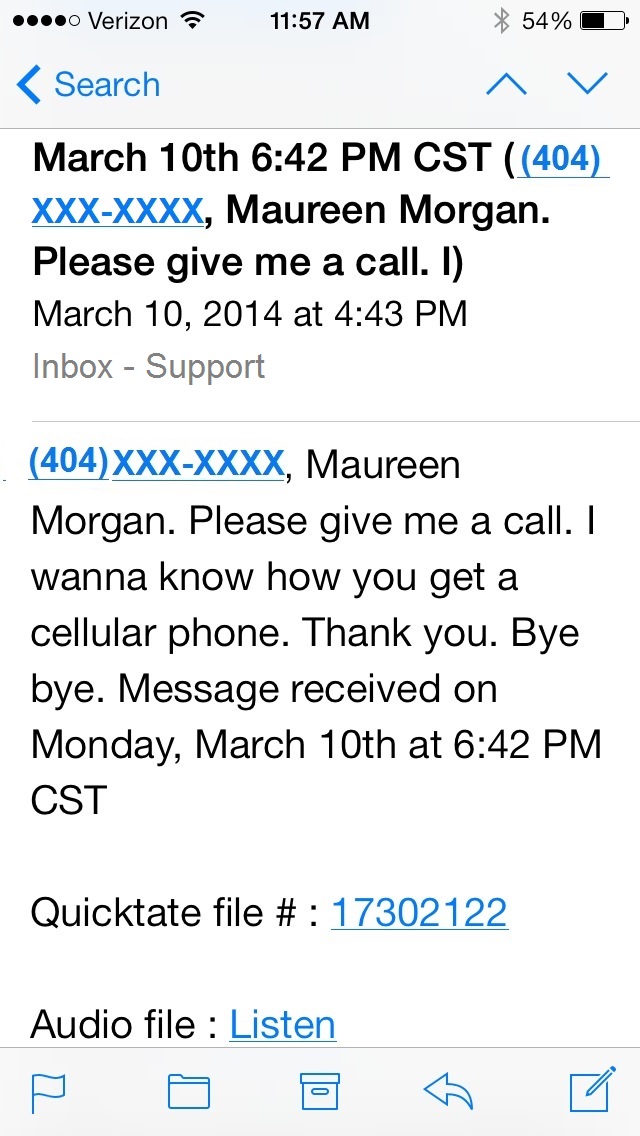
While Google Voice has millions of satisfied users, there are still a lot of complaints about the quality of its automated transcription.  According to many Google Voice users,  the transcripts are frequently unreadable, undecipherable, or don't make sense. For example, the message below was first transcribed by Google Voice (left), and then re-transcribed by Quicktate (right).

  Transcribed by Google Voice                Transcribed by Quicktate image00.jpg        image01.jpg
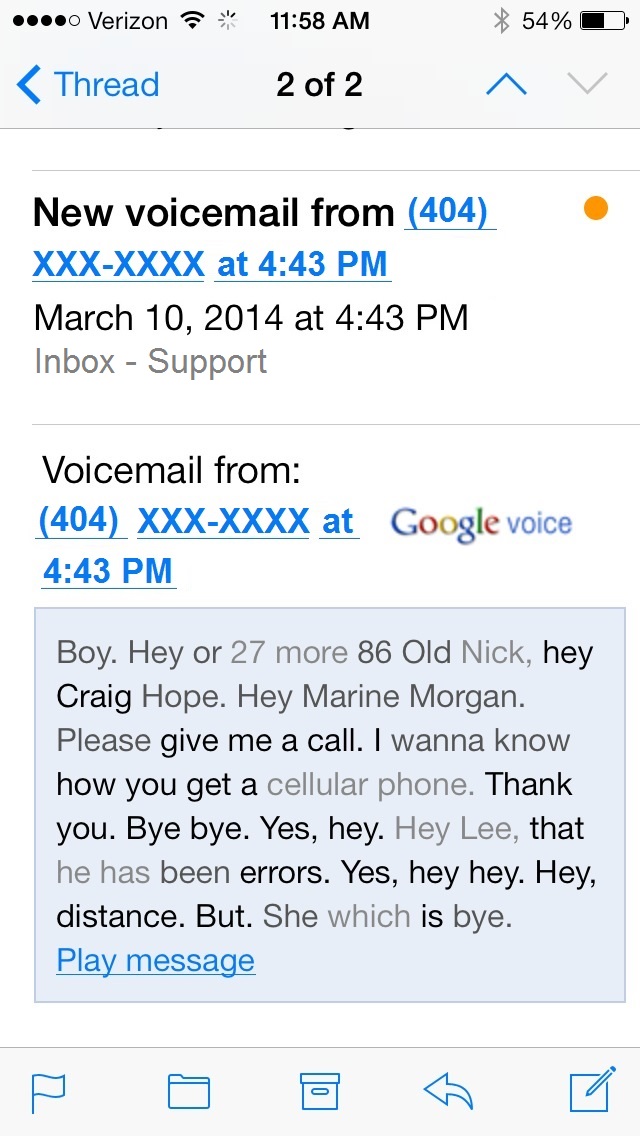
Quicktate solves this quality problem by automatically assigning Google Voice files to its team of professional transcribers who quickly convert the voice mail messages into clear and accurate text (assuming of course that a human can understand the message). The completed transcripts are then emailed back to the user along with a link to the audio.


Registered users may submit Google Voice mail messages to Quicktate on an as-needed basis (i.e. only when a more accurate transcript is needed) by simply forwarding the message to transcribe @ quicktate.com, or may choose to automatically deliver all Google Voice mail messages to Quicktate. Instructions can be found at http://www.quicktate.com/gv_tutorial.php.  In all cases, users will continue to receive their Google Voice messages and Google transcription just as they do now.


With higher quality transcripts, users can more easily read and understand their important messages, and can more reliably perform key-word searches in Google and in Evernote.


"Starting today, users can now enjoy all the benefits of Google Voice, and get high-quality transcription" according to Lee Dorfman, Quicktate's CEO. "Prices start at less than 1 cent per word, with plans available for General, Legal and Medical transcription."  

For faster turn-around-times, Google Voice users should select a General Transcription plan utilizing Global Typists.


Google Voice users may test Quicktate for free.  To get started, visit http://www.quicktate.com/gv.php.

About Quicktate
Quicktate provides high quality speech transcription, which easily integrates into existing services using a flexible REST API. Current applications include call auditing and transcribing voice mail messages, conference calls, iPhone, Android, and Evernote voice recordings. Specialties include medical, legal, general and law enforcement dictation. Quicktate is based in San Francisco, California.


CONTACT INFORMATION
Mr. Lee J. Dorfman
President and Chief Executive Officer
(877) DICTATE ext. 2
ljd@quicktate.com

Saturday, January 18, 2014

How AccessLine Users Can Get Their Voicemail Messages Transcribed by Quicktate and Saved in Evernote

Users of AccessLine, a leading provider of cloud-based phone and voice services recently acquired by Intermedia, may easily configure their preferences so that their voice mail messages are automatically transcribed by Quicktate (humans) and searchable in Evernote. This blog post will show you how to get set up in 3 easy steps.

1. Set Your AccessLine Preferences
Log into your AccessLine Account
Go to Settings and select the Notification tab (see diagram below)
Turn Email Notifications to "on"

Enter your Evernote email address (find this in Evernote at Account/ General Settings)
Select Attach the voice mail message as a .WAV file

Select the type of message(s) you wish to be notified of
Click "Save"


2. Create a Quicktate Account and an Evernote Account
If you don't have a Quicktate account, Create one 
If you don't have an Evernote account, Create one

3. Sync your Quicktate and Evernote Accounts
Log in to Quicktate and click Enable Evernote


Here's what your voice mail messages will look like in your Evernote account. Note that the transcript magically appears along-side the audio file. Your voice mail messages can now be searched in Evernote.


Saturday, January 4, 2014

How to use Quicktate & Evernote to get more done


For those of you who make lots of notes, lists and reminders, you’ll find today’s blog post to be very exciting.  With so little time to get so much done, anything to increase productivity is worth a shot.  And using your voice might just be the key. 

1. You open Evernote on one of your devices;
2. You record a voice note and save it;
3. In minutes your voice note is transcribed and the transcript magically appears in Evernote;

Quicktate can actually turn Evernote voice notes into text that you can easily search and access anywhere you have Evernote installed.

What are some examples of audio files you can record and have transcribed in Evernote?
1. To-do list, To-call list, Grocery list; Supply list, Holiday gift list; Packing list, Bucket list;
2. Summaries of meetings you attended;
3. Summaries of phone calls;
4. Notes for the book you want to write (or dictate the whole book);
5. Ideas that randomly pop into your head;
6. Property or site inspection reports if you work or take notes in the field.

Transcribing these notes might be the easiest way to find and remember them later.

An introduction to Quicktate
Unlike some transcription services, Quicktate does not use voice recognition technology but rather, employs its own team of pre-screened professionals that transcribe voice recordings. Because your audio notes are transcribed by a real human, the accuracy of the transcription is remarkably high, and the turnaround is surprisingly quick.

Quicktate transcribes both long and short voice notes, voice mail messages and recordings of phone calls. One-minute voice notes recorded in Evernote are usually transcribed within 3 to 4 minutes.  Longer notes will take more time.

To start using Quicktate, first create an account. As part of setting up your account, you’ll be asked to authorize Quicktate to access your Evernote account. (Don’t worry, Quicktate can only see your new audio notes – Quicktate cannot see your other notes.) After you’ve linked your accounts, any time you create an audio recording in Evernote, the recording will be sent to Quicktate for transcription, and the transcribed text will go straight back into the original note in your Evernote account.

You can record an audio note in every version of Evernote. But if you’re on the go, you can also call (888) 222-NOTE and dictate your recording by phone.

In addition to creating your audio in Evernote, you can send audios to Evernote by email, and those audios, assuming they are mp3, Wav, or AIF, will be transcribed too. 

And one more thing.  Not only can you email your own recordings to Evernote, but you can also deliver your voicemail messages (or call recordings) to Evernote where they too will be transcribed and become searchable. This feature only works if your phone provider is able to email audio recordings.   A few phone providers that can email voicemail or call recordings are 8×8, Accessline, Cisco, inTalk, Kall8, Ring Central and Vitelity. The diagram above shows how this works. 

A Word of Caution
If you don’t want a particular audio note transcribed, please visit the “How it Works” page of the Quicktate website.

Conclusion
Dictating and transcribing your notes right in Evernote might just allow you to get more done in less time.  You can try Quicktate for free (automatic $5.00 credit) at http://quicktate.com/evernote. 


Thursday, March 14, 2013

Reinventing Paper in Evernote and Springpad

Our Guest Blogger this week is Daniel Gold - productivity author, consultant and presenter. Daniel works with individuals and corporations to leverage new technology to be more efficient. 

The following post was handwritten by Daniel into a Moleskine notebook (see image below), and then added to Evernote, where it was emailed to iDictate to be transcribed. Users of the Moleskine notebook have included Ernest Hemmingway, Henri Matisse, Pablo Picasso, and Vincent van Gogh.

Daniel is the author of the best selling Evernote & Springpad GTD e-books.  iDictate users interested in any of Daniel's productivity books receive a 25% discount by entering promo code "iDictate" in the DEG Consulting Bookstore.

Reinventing Paper in Evernote and Springpad

You may recall, I recently wrote a piece on the 5-Day Analog Challenge, where I challenged myself and all of you to appreciate paper once more to enhance our productivity. Well, here’s another reason to appreciate paper.
Reinventing Paper in Evernote and Springpad Integration Productivity GTD Getting Things Done
I travel a lot on airplanes, and there’s generally about 20 minutes or longer that you need to turn off all electronics until you hit 10,000 feet. In that 20 minute timeframe, my mind ignites with thoughts about projects, commitments and tasks. I can’t help it! It’s like the moment they say turn off your electronics, my brain turns on! But, when you really think about it, it’s actually of no surprise. When we finally allow ourselves to go offline, the magic of our brain goes “online”. We become more focused because there’s no ringing, dinging, pinging, buzzing, tweeting, et cetera. You can’t distract yourself with status updates or e-mails. We become focused. So, during this time that I can’t open Evernote or Springpad or Drafts to get these thoughts onto something bigger than a 4×4 US Airways cocktail napkin, I pull out my journal.
I see the convergence of both analog and digital tools such as the Evernote Moleskine, Whitelines LINK, and the Livescribe pen as ways to reinvent how we use paper and our digital devices. Our thoughts can now live in both the analog & digital world, allowing us to capture and collect our thoughts to process, organize, review and act on at a later date. Fellow productivity guru, Mike Vardy, has posted before about why paper just works (and here, here, and here!).
If you use Evernote and have neat enough handwriting, you can leverage the OCR technology to search your handwriting.
As an added bonus, you can email your hand-written notes directly from your Moleskine, Evernote, Penultimate, or any other application directly to mynotes@idictate.com and your notes will be transcribed by a live person at iDictate for just a couple cents a word! And as an added bonus, when you create your iDictate account, enter “GOLD” as the promo code and your account will be credited $5.00.
In fact, not only was this entire post written in that 20 minute timeframe from runway to 10,000 feet in my Evernote Moleskine, but iDictate turned it into a text document for me!

Saturday, February 9, 2013

Using the Quicktate RESTful API to Add Accurate Transcription to Your Applications


Using the Quicktate RESTful API


Quicktate recently released a new RESTful API to help make integrating with the service a breeze. That said, while our new RESTful API documentation uses Swagger to generate our service documentation, many of the common RESTful semantics we rely on are completely missing from that documentation. Until we figure out an easier way to convey that information via Swagger, here’s some basic information on how to get around the API.
If you are a developer, you should contact Support to request free transcription while you develop and test your application. After creating an account you can log in and retrieve your API Key in Profile. 

Authentication

All requests currently are performed using HTTP Basic authentication. While we are still developing our OAuth provider and intend to use that as our primary mechanism for authenticating users, we currently are accepting your username and password via a standard HTTP Basic Authorization request.  As a raw HTTP header, you are looking at the following for authenticating as demo@quicktate.com with password Test1234%:
1
Authorization: Basic ZGVtb0BxdWlja3RhdGUuY29tOlRlc3QxMjM0JQ==
As a cUrl request, you’ll be looking at using the -u demo@quicktate.com:Test1234%argument to the command.

Transcription Requests

The basis of Quicktate is transcriptions. However, while there is a /transcriptionresource for our API, you don’t actually create transcriptions - that’s the job of our typists. Instead, you submit a /transcriptionrequest to Quicktate and operate on that request until a typist has completed transcribing and turns it into a /transcription.
So, we expect very little in the HTTP headers for this type of request. Because you’re creating a new Transcription request, the method will be POST. What’s most important is the body of the request. Most developers are used to submitting the request as a form request, to where in a PHP application, the variables will come across in $_POST. In this case, however, we expect the body of the message to be either XML or JSON (as indicated in the Content-Type header).
What should be in the body of the message? The transcription request. When creating a transcription request for the first time, you’ll need to supply us with the following information:
Field NameRequired?Description
callbackDestinationNoThe URL or e-mail address where a callback should occur upon completion of the transcription.
“callbackMethod“No *The way the callbackDestination should be invoked. This is mandatory if callbackDestination is specified. Valid values include: “HTTPPOST“, “RESTPOST“, “XMLRPC“, “EMAIL“.
“metadata“NoYour custom metadata for this transcription request. This is sent back to you in the callback so that you have data you can trace back to some internal identifier or record.
“language“YesPretty self-explainatory. Valid values are: 1 = English, 2 = Spanish. Others on the way!
“audiourl“YesThe URL of the audio file you wish to be downloaded and transcribed. Must be accessible from the internet. This is required if no “audiodata“ is present.
“audiodata“YesA Base 64 encoded block of the audio file to be transcribed. This is required if no “audiourl“ is present.
So, a sample HTTP request might look like the following:
1
2
3
4
5
6
7
8
9
10
11
12
13
14
15
POST /v1/api/transcriptionrequest HTTP/1.1
Authorization: Basic ZGVtb0BxdWlja3RhdGUuY29tOlRlc3QxMjM0JQ==
User-Agent: curl/7.24.0 (x86_64-apple-darwin12.0) libcurl/7.24.0 OpenSSL/0.9.8r zlib/1.2.5
Host: api.quicktate.com
Accept: application/json
Content-Type: application/json
Content-Length: 208

{ 
  "callbackDestination": "https://private.host.callback.com/callback-url.php",
  "callbackMethod": "HTTPPOST",
  "metadata": "My custom metadata",
  "language": 1,
  "audiourl": "http://www.quicktate.com/audio.wav"
}
or from cUrl it would look like the following:
1
curl -u demo@quicktate.com:Test1234% -H "Accept: application/json" -H "Content-Type: application/json" -X POST -d '{ "callbackDestination": "https://private.host.callback.com/callback-url.php", "callbackMethod": "HTTPPOST", "metadata": "My custom metadata", "language": 1, "audiourl": "http://www.quicktate.com/audio.wav" }' -v https://api.quicktate.com/v1/api/transcriptionrequest
The response I’m likely to receive back will look like the following:
1
2
3
4
5
6
7
8
9
10
11
12
13
14
HTTP/1.1 201 Created
Server: nginx
Date: Mon, 28 Jan 2013 06:14:43 GMT
Content-Type: application/json
Transfer-Encoding: chunked
Connection: keep-alive
X-Powered-By: PHP/5.3.17-1~dotdeb.0
Vary: Accept
Access-Control-Max-Age: 86400
Access-Control-Allow-Origin: *
Access-Control-Allow-Credentials: true
Access-Control-Allow-Headers: Authorization, X-Authorization, Origin, Accept, Content-Type, X-Requested-With, X-HTTP-Method-Override
Access-Control-Allow-Methods: GET, POST, PUT, DELETE, HEAD, OPTIONS
Location: /v1/api/transcriptionrequest/14967237
What’s important to realize is that you will only have a successful request submitted when the status code returned is a 201. If you get a 400-level error message, check which one. If it’s a 401 or a 403, then you are not sending the proper credentials. If it’s just a 400 error, then you need to look at how you’re sending your data to the API, because the API doesn’t recognize the payload.
Once you’ve gotten past that, you may be wondering, how do I access the transcription request now? There is no body to this whatsoever. This is one of those REST semantics at play. If you look in the return headers, there is a Location header which specifies exactly where you can access your transcriptionRequest. Simply submit a GET request to that URL and you’ll find the status of your transcriptionRequest. The response will look something similar to the following:
1
2
3
4
5
6
7
8
9
10
11
12
13
14
15
16
17
18
19
20
21
22
23
24
25
HTTP/1.1 200 Success
Server: nginx
Date: Mon, 28 Jan 2013 06:14:43 GMT
Content-Type: application/json
Transfer-Encoding: chunked
Connection: keep-alive
X-Powered-By: PHP/5.3.17-1~dotdeb.0
Vary: Accept
Access-Control-Max-Age: 86400
Access-Control-Allow-Origin: *
Access-Control-Allow-Credentials: true
Access-Control-Allow-Headers: Authorization, X-Authorization, Origin, Accept, Content-Type, X-Requested-With, X-HTTP-Method-Override
Access-Control-Allow-Methods: GET, POST, PUT, DELETE, HEAD, OPTIONS

{
  "id": 14967237,
  "callbackDestination": "https://private.host.callback.com/callback-url.php",
  "callbackMethod": "",
  "status": 0,
  "metadata": "Represents an unprocessed audio file. ",
  "datePosted": "2012-12-01T01:23:45-0600",
  "language": 99,
  "audiodata": null,
  "audiourl": null
},

Completed Transcriptions

That is, until your transcription is complete. Once your transcription is complete, the resource URL will permanently move. As a result, you’ll see the status code for the previous URL change from 200 to 302, indicating that it’s been permanently moved. Fortunately, we point you in the direction of where you need to go again, through the Location header:
1
2
3
4
5
6
7
8
9
10
11
12
13
14
HTTP/1.1 302 Moved
Server: nginx
Date: Mon, 28 Jan 2013 06:14:43 GMT
Content-Type: application/json
Transfer-Encoding: chunked
Connection: keep-alive
X-Powered-By: PHP/5.3.17-1~dotdeb.0
Vary: Accept
Access-Control-Max-Age: 86400
Access-Control-Allow-Origin: *
Access-Control-Allow-Credentials: true
Access-Control-Allow-Headers: Authorization, X-Authorization, Origin, Accept, Content-Type, X-Requested-With, X-HTTP-Method-Override
Access-Control-Allow-Methods: GET, POST, PUT, DELETE, HEAD, OPTIONS
Location: /v1/api/transcription/14967237
When you submit a GET request to the Location URL listed above, your payload will look like the following:
1
2
3
4
5
6
7
8
9
10
11
12
13
14
15
16
17
18
19
20
21
22
23
HTTP/1.1 200 Success
Server: nginx
Date: Mon, 28 Jan 2013 06:14:43 GMT
Content-Type: application/json
Transfer-Encoding: chunked
Connection: keep-alive
X-Powered-By: PHP/5.3.17-1~dotdeb.0
Vary: Accept
Access-Control-Max-Age: 86400
Access-Control-Allow-Origin: *
Access-Control-Allow-Credentials: true
Access-Control-Allow-Headers: Authorization, X-Authorization, Origin, Accept, Content-Type, X-Requested-With, X-HTTP-Method-Override
Access-Control-Allow-Methods: GET, POST, PUT, DELETE, HEAD, OPTIONS

{
  "id": 14967243,
  "metadata": "Represents a processed audio file. ",
  "datePosted": "2012-12-01T01:23:45-0600",
  "dateCompleted": "2012-12-01T01:25:30-0600",
  "wordcount": null,
  "language": 99,
  "transcription": "This is a completed transcription request."
}